Tutorial: Map editor
CSA Loom
mapeditor — verified working against a live console by the UAT harness on 2026-07-01.
Open the editor
- Sign in to your CSA Loom Console (for example
https://<your-console-host>). - Open or create a workspace from the Workspaces page.
- Click + New item and choose Map from the catalog.
- The editor opens at
/items/map/<id>:
What this editor does
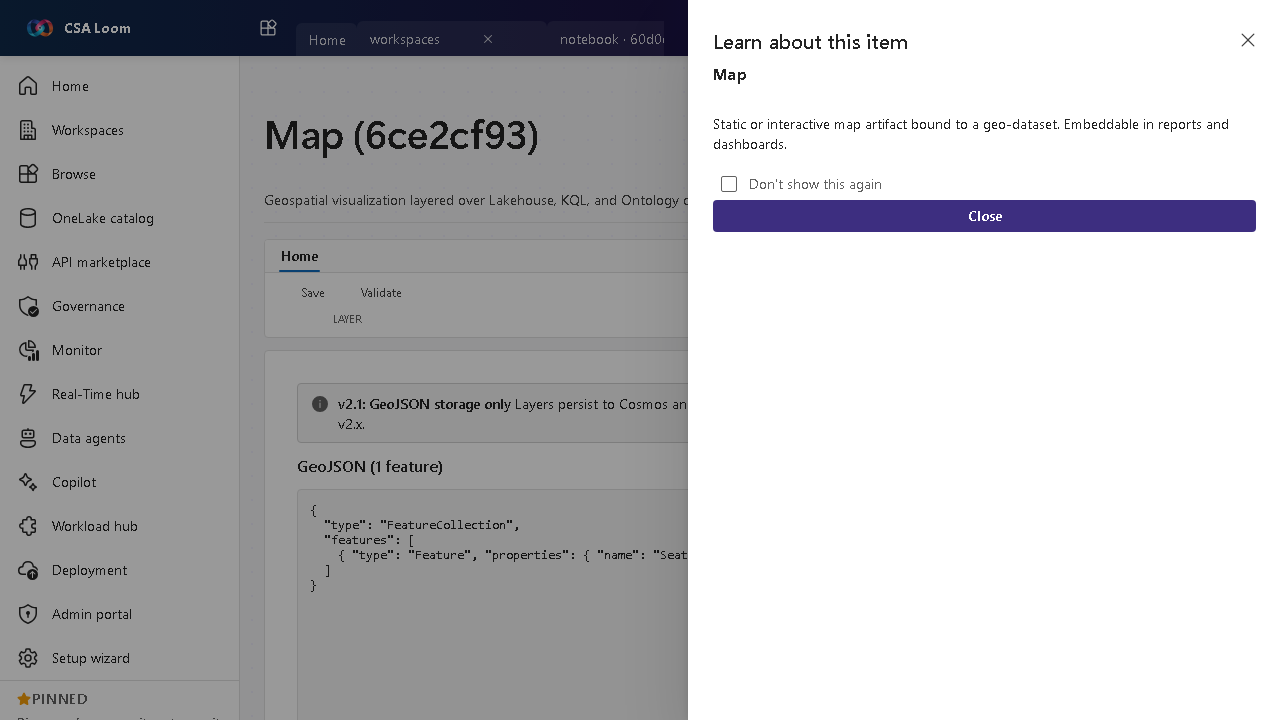
A Map is a geospatial visualization layered over Lakehouse, KQL, and Ontology data. In Loom the map binds to a live Azure-native source — a Synapse Serverless table (Lakehouse), an Azure Data Explorer KQL query, or a Weave Ontology entity — and renders point, heatmap, cluster, and choropleth layers over the returned geo rows. No Power BI / Fabric required; the vector overlay renders offline and an optional Azure Maps raster basemap layers behind it.
Getting started
- Bind a geo-dataset — On the Data binding tab, pick Lakehouse / KQL / Ontology, map the lat/lon (and optional value/label) columns, and Run binding — Loom queries the real backend and folds the rows into the map.
- Add layers — Compose point, heatmap, cluster, or choropleth layers over the bound data; each can be weighted by a numeric value column/property.
- Style and color — Set color ramps and symbology so the geography reads clearly.
- Draw and measure — Toggle Draw / measure to sketch points, lines, polygons, rectangles, and circles directly on the map with a live spherical distance / area readout; drawn annotations persist with the map.
- Geocode addresses — Paste addresses (one per line) in the Geocode addresses box on the Data binding tab and Geocode & plot — Loom resolves them to lat/lon via Azure Maps Search and plots the points (use Use bound labels to geocode an address column you already bound). Requires the Azure Maps account wiring; a missing account surfaces an honest gate.
- Embed it — Embed the map in a report or dashboard for consumers.
Learn more
- Microsoft Learn reference: https://learn.microsoft.com/fabric/fundamentals/fabric-iq
Verified by the UAT harness
- Tested at:
2026-05-26T13:52:46.860Z - Verdict: A (renders cleanly, real backend responded)
- Test source:
apps/fiab-console/e2e/editors.uat.ts