Tutorial: Eventstream editor
CSA Loom
eventstreameditor — verified working against a live console by the UAT harness on 2026-07-01.
Open the editor
- Sign in to your CSA Loom Console (for example
https://<your-console-host>). - Open or create a workspace from the Workspaces page.
- Click + New item and choose Eventstream from the catalog.
- The editor opens at
/items/eventstream/<id>:
What this editor does
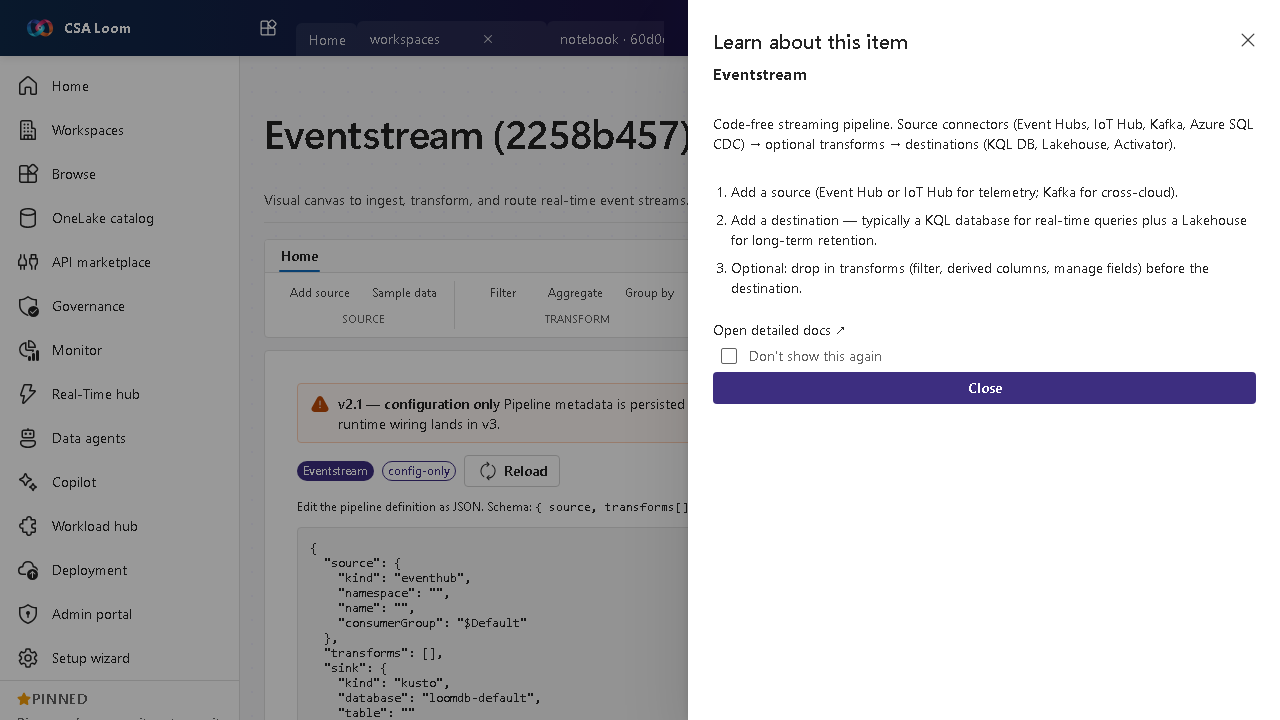
An Eventstream is a code-free visual canvas to ingest, transform, and route real-time event streams. In Loom you wire source connectors (Event Hubs, IoT Hub, Kafka, Azure SQL CDC) through operators to destinations, then Provision to Azure to stand up a real Event Hub (transport) + Stream Analytics job (transforms) — Azure-native, no Fabric required. The editor has four tabs: Visual designer (the canvas), Operators (the guided operator builder), SQL operator, and a read-only Definition view.
Getting started
- Add a source — Use Event Hub or IoT Hub for telemetry, or Kafka for cross-cloud streams, on the visual canvas.
- Add operators — Drop in operators between source and destination — Filter, Manage fields, Aggregate, Group by, Expand, Union, and Join — on the canvas or the guided Operators builder. Validate runs the real Stream Analytics compiler and Apply to ASA pushes the compiled query to the live streaming job.
- Add destinations — Route to a KQL database for real-time queries, a Lakehouse for long-term retention, an Activator to fire actions on conditions, a derived stream, or a Spark notebook sink (structured streaming over the stream's Event Hub / ADLS landing).
- Pause and resume — Pause a derived stream to exclude it from the running topology and Resume it later; the paused state persists and is honored when you Provision to Azure.
- Review the Definition — The read-only Definition tab shows the canonical topology JSON. The canvas and Operators builder are the source of truth — the JSON view is for inspection, not editing.
Learn more
- Microsoft Learn reference: https://learn.microsoft.com/fabric/real-time-intelligence/event-streams/overview
Verified by the UAT harness
- Tested at:
2026-05-26T13:51:36.477Z - Verdict: A (renders cleanly, real backend responded)
- Test source:
apps/fiab-console/e2e/editors.uat.ts