Tutorial: Geo map editor
CSA Loom
geo-mapeditor — verified working against a live console by the UAT harness on 2026-07-01.
Open the editor
- Sign in to your CSA Loom Console (for example
https://<your-console-host>). - Open or create a workspace from the Workspaces page.
- Click + New item and choose Geo map from the catalog.
- The editor opens at
/items/geo-map/<id>:
What this editor does
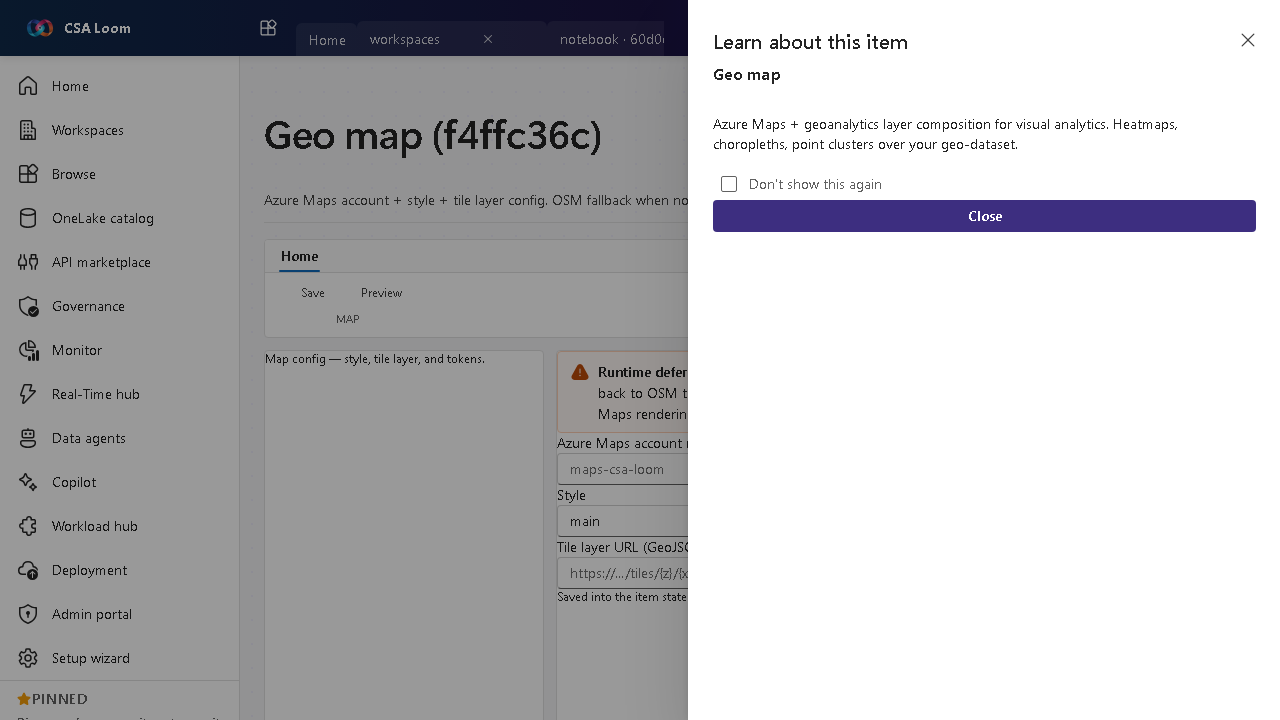
A Geo map composes an Azure Maps account, style, and tile layer. In Loom it lists Azure Maps accounts via ARM when available and falls back to OSM tiles with a MessageBar when no Maps account is deployed. Map config is saved to item state.
Getting started
- Pick a Maps account — Loom lists Azure Maps accounts via ARM; if none exist it falls back to OSM tiles and says so.
- Choose a style — Select the base map style and tile layer.
- Save the config — Save persists the map configuration to item state.
- Layer your data — Compose the map over a geo-dataset for heatmaps and choropleths.
Learn more
- Microsoft Learn reference: https://learn.microsoft.com/azure/azure-maps/about-azure-maps
Verified by the UAT harness
- Tested at:
2026-05-26T13:56:23.207Z - Verdict: A (renders cleanly, real backend responded)
- Test source:
apps/fiab-console/e2e/editors.uat.ts