Home > Tutorials > SHIR & Data Gateways
🔌 Tutorial 23: Self-Hosted Integration Runtime & Data Gateways
Last Updated: 2026-04-15 | Version: 2.0 Status: ✅ Final | Maintainer: Documentation Team




Third-party references — publicly sourced, good-faith comparison
This page references non-Microsoft products and services. That information is drawn from each vendor's publicly available documentation and is offered for honest, good-faith comparison only. This is a personal project written from a Microsoft Fabric and Azure perspective; it does not claim expertise in, or authority over, any third-party product, and nothing here is an official statement by, or endorsed by, those vendors. Capabilities, pricing, and features change often — always verify against the vendor's current official documentation. Where a third-party offering is the stronger choice, we say so plainly.
🎯 Overview
This tutorial provides comprehensive guidance on implementing Self-Hosted Integration Runtime (SHIR) and On-Premises Data Gateways for Microsoft Fabric. Essential for connecting to on-premises data sources, private networks, and legacy systems.
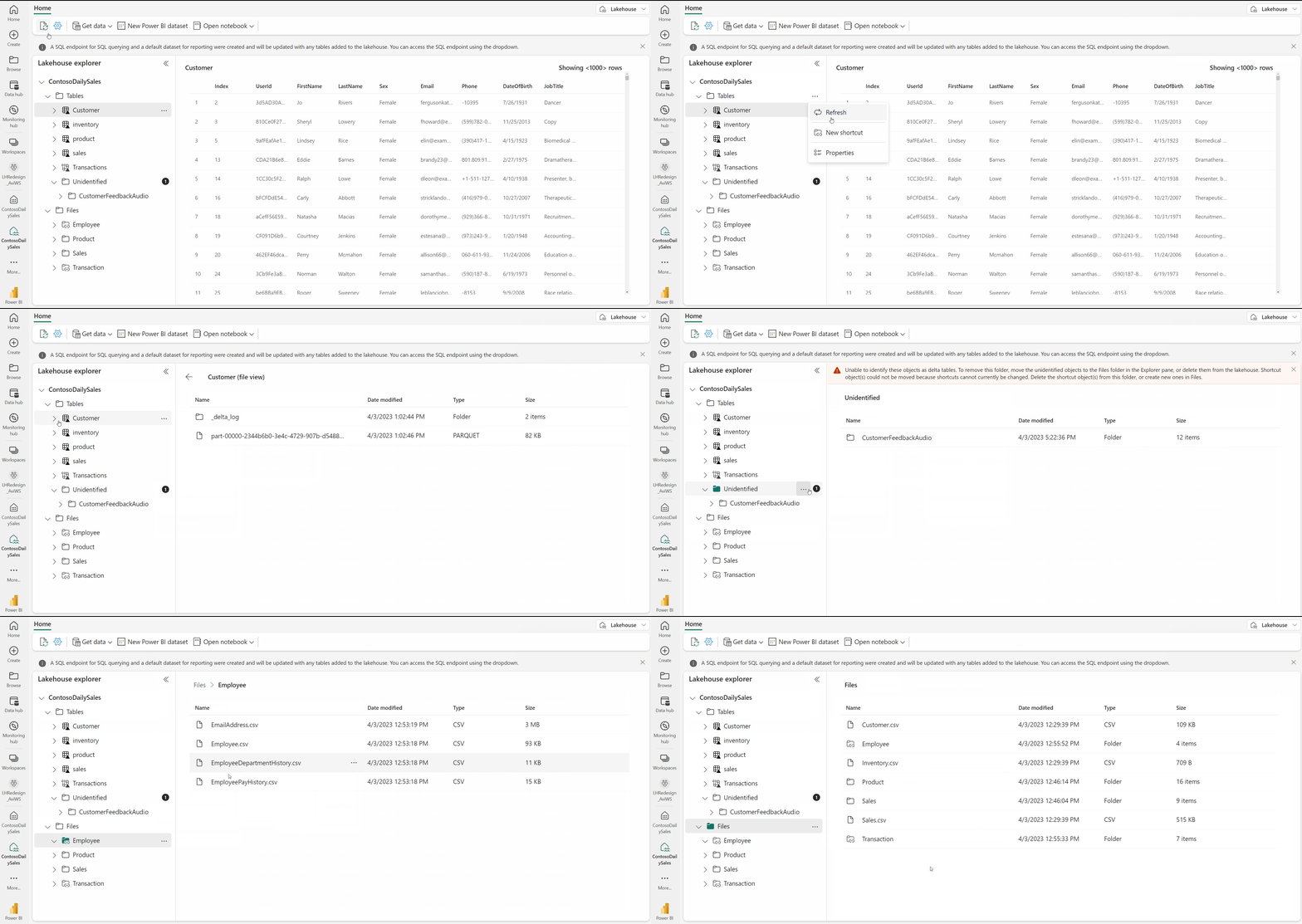
Source: Lakehouse Overview
Duration: 2-3 hours Level: Intermediate to Advanced Prerequisites: - Windows Server 2016+ or Windows 10/11 machine - .NET Framework 4.7.2+ - Network access to on-premises data sources - Fabric workspace admin access
📚 Learning Objectives
By the end of this tutorial, you will be able to:
- Install and configure Self-Hosted Integration Runtime
- Set up On-Premises Data Gateway
- Configure high availability clustering
- Connect to various on-premises data sources
- Monitor and troubleshoot gateway connections
- Implement security best practices
🛠️ Part 1: Self-Hosted Integration Runtime (SHIR)
Understanding SHIR vs Data Gateway
| Feature | SHIR | On-Premises Data Gateway |
|---|---|---|
| Primary Use | Data Factory/Synapse pipelines | Power BI, Dataflows Gen2 |
| Data Movement | Batch, scheduled | Real-time, refresh |
| Protocol | Copy activity, data flows | DirectQuery, Import |
| Licensing | Included with Fabric | Included with Fabric |
| Best For | ETL/ELT pipelines | BI semantic models |
Step 1.1: Download and Install SHIR
System Requirements: - Windows Server 2016/2019/2022 or Windows 10/11 - 4 cores, 8 GB RAM minimum (8 cores, 16 GB recommended) - .NET Framework 4.7.2+ - 100 GB disk space
# Download SHIR installer
$downloadUrl = "https://go.microsoft.com/fwlink/?linkid=839822"
$installerPath = "C:\Temp\IntegrationRuntime.msi"

# Create directory if not exists
New-Item -ItemType Directory -Path "C:\Temp" -Force

# Download installer
Invoke-WebRequest -Uri $downloadUrl -OutFile $installerPath

# Install silently
Start-Process msiexec.exe -Wait -ArgumentList "/i $installerPath /quiet"

Write-Host "SHIR installation complete"
Step 1.2: Register SHIR with Fabric
- Get Registration Key from Fabric:
- Navigate to Fabric portal
- Go to Settings > Manage connections and gateways
- Click + New > On-premises data gateway (Personal mode) or Integration Runtime
-
Copy the registration key
-
Register via Configuration Manager:
# Open SHIR Configuration Manager
$configManager = "C:\Program Files\Microsoft Integration Runtime\5.0\Shared\IntegrationRuntimeConfigurationManager.exe"

# Register with key (interactive)
Start-Process $configManager

# Or register via PowerShell
$registrationKey = "YOUR_REGISTRATION_KEY_HERE"

# Using dmgcmd.exe for registration
$dmgcmd = "C:\Program Files\Microsoft Integration Runtime\5.0\Shared\dmgcmd.exe"
& $dmgcmd -RegisterNewNode $registrationKey
Step 1.3: Configure SHIR Settings
# Configure concurrent jobs (adjust based on your hardware)
# Default is 20, increase for high-throughput scenarios
$dmgcmd = "C:\Program Files\Microsoft Integration Runtime\5.0\Shared\dmgcmd.exe"

# Set concurrent jobs limit
& $dmgcmd -SetConcurrentJobsLimit 40

# Enable auto-update
& $dmgcmd -EnableAutoUpdate

# Configure custom logging
& $dmgcmd -SetDiagnosticLevel "Verbose"
Step 1.4: Configure Network Settings
# Configure proxy (if required)
# Open Configuration Manager > Settings > Network

# Or via command line
$dmgcmd = "C:\Program Files\Microsoft Integration Runtime\5.0\Shared\dmgcmd.exe"

# Set proxy
& $dmgcmd -SetProxySettings "http://proxy.contoso.com:8080" "domain\username" "password"

# Configure firewall rules
New-NetFirewallRule -DisplayName "SHIR Outbound HTTPS" `
    -Direction Outbound `
    -Protocol TCP `
    -LocalPort 443 `
    -Action Allow

New-NetFirewallRule -DisplayName "SHIR Outbound Service Bus" `
    -Direction Outbound `
    -Protocol TCP `
    -LocalPort 9350-9354 `
    -Action Allow
Step 1.5: Create SHIR High Availability Cluster
# On primary node (already registered)
# Get Node Name from Configuration Manager

# On secondary node - install SHIR first, then:
$dmgcmd = "C:\Program Files\Microsoft Integration Runtime\5.0\Shared\dmgcmd.exe"

# Join existing cluster using the same registration key
$registrationKey = "YOUR_REGISTRATION_KEY_HERE"
& $dmgcmd -RegisterNewNode $registrationKey

# The node will automatically join the cluster
# Verify in Fabric portal: Settings > Manage connections and gateways
🔌 Part 2: On-Premises Data Gateway
Step 2.1: Download and Install Gateway
# Download On-Premises Data Gateway
$gatewayUrl = "https://go.microsoft.com/fwlink/?LinkId=2116849"
$installerPath = "C:\Temp\GatewayInstall.exe"

Invoke-WebRequest -Uri $gatewayUrl -OutFile $installerPath

# Run installer (interactive)
Start-Process $installerPath

# Or silent install
Start-Process $installerPath -ArgumentList "/quiet" -Wait
Step 2.2: Gateway Configuration Wizard
- Launch Gateway Configuration:
- Start menu > On-premises data gateway
-
Sign in with your Microsoft Entra ID account
-
Register Gateway:
- Enter gateway name:
GW-Casino-Analytics-01 - Enter recovery key (save securely!)
-
Select region: Same as your Fabric capacity
-
Configure Gateway:
- Add to existing cluster or create new
- Configure network settings if needed
Step 2.3: Add Data Sources to Gateway
Via Fabric Portal:
- Navigate to Settings > Manage connections and gateways
- Select your gateway
- Click + New connection
SQL Server Connection:
{
  "connectionType": "Sql",
  "connectionDetails": {
    "server": "sql-casino-onprem.contoso.local",
    "database": "CasinoOperations",
    "authenticationType": "Windows"
  },
  "privacyLevel": "Organizational",
  "gateway": "GW-Casino-Analytics-01"
}
Oracle Connection:
{
  "connectionType": "Oracle",
  "connectionDetails": {
    "server": "oracle-casino.contoso.local:1521/CASINO",
    "authenticationType": "Basic"
  },
  "credentials": {
    "username": "fabric_reader",
    "password": "****"
  },
  "gateway": "GW-Casino-Analytics-01"
}
Step 2.4: Gateway Cluster Configuration
# Primary Gateway is already installed
# On secondary server:

# 1. Install gateway software
# 2. During configuration, select "Add to an existing gateway cluster"
# 3. Enter the same recovery key used for primary

# Verify cluster status
# In Fabric Portal: Settings > Manage connections and gateways
# Select gateway > View cluster members
Step 2.5: Load Balancing Configuration
# Configure load balancing in gateway cluster
# Option 1: Round-robin (default)
# Option 2: Weighted routing based on CPU/memory

# Via PowerShell Gateway Management
# Note: These settings are typically configured via the portal

# Check gateway health
$gatewayCmd = "C:\Program Files\On-premises data gateway\enterprisegatewayconfigurator.exe"
& $gatewayCmd -diagnose
🗄️ Part 3: Connecting On-Premises Data Sources
Step 3.1: SQL Server Connection
Prerequisites: - SQL Server accessible from gateway server - User with appropriate read permissions
Create Connection in Fabric:
# Example: Data Pipeline with SHIR
# In Fabric Data Factory:

# 1. Create Linked Service
linked_service = {
    "name": "ls_sqlserver_onprem",
    "type": "SqlServer",
    "typeProperties": {
        "connectionString": "integrated security=True;data source=sql-casino.contoso.local;initial catalog=CasinoOps",
        "userName": "fabric_service",
        "password": {
            "type": "AzureKeyVaultSecret",
            "store": {
                "referenceName": "ls_keyvault",
                "type": "LinkedServiceReference"
            },
            "secretName": "sql-onprem-password"
        }
    },
    "connectVia": {
        "referenceName": "ir-onpremises",
        "type": "IntegrationRuntimeReference"
    }
}
Step 3.2: File System Connection
# Connect to on-premises file shares
linked_service = {
    "name": "ls_fileshare_onprem",
    "type": "FileServer",
    "typeProperties": {
        "host": "\\\\fileserver.contoso.local\\casino-data",
        "userId": "domain\\fabric_service",
        "password": {
            "type": "AzureKeyVaultSecret",
            "store": {
                "referenceName": "ls_keyvault",
                "type": "LinkedServiceReference"
            },
            "secretName": "fileshare-password"
        }
    },
    "connectVia": {
        "referenceName": "ir-onpremises",
        "type": "IntegrationRuntimeReference"
    }
}
Step 3.3: Oracle Database Connection
Prerequisites: - Oracle client installed on gateway server - TNS names configured
# Install Oracle Client on gateway server
# Download from Oracle website

# Configure tnsnames.ora
# Location: C:\app\oracle\product\19.0.0\client_1\network\admin\tnsnames.ora

$tnsContent = @"
CASINO_PROD =
  (DESCRIPTION =
    (ADDRESS = (PROTOCOL = TCP)(HOST = oracle-prod.contoso.local)(PORT = 1521))
    (CONNECT_DATA =
      (SERVER = DEDICATED)
      (SERVICE_NAME = CASINO)
    )
  )
"@

$tnsContent | Out-File "C:\app\oracle\product\19.0.0\client_1\network\admin\tnsnames.ora" -Encoding ASCII
Step 3.4: SAP HANA Connection
# SAP HANA requires HANA ODBC driver
# Install on gateway server first

linked_service = {
    "name": "ls_saphana_onprem",
    "type": "SapHana",
    "typeProperties": {
        "connectionString": "servernode=hana.contoso.local:30015;uid=FABRIC_USER",
        "password": {
            "type": "AzureKeyVaultSecret",
            "store": {
                "referenceName": "ls_keyvault",
                "type": "LinkedServiceReference"
            },
            "secretName": "saphana-password"
        }
    },
    "connectVia": {
        "referenceName": "ir-onpremises",
        "type": "IntegrationRuntimeReference"
    }
}
🚀 Part 4: Data Pipeline Examples
Step 4.1: Copy On-Premises SQL to Fabric Lakehouse
# Notebook: nb_copy_onprem_sql

# This notebook copies data from on-premises SQL Server to Bronze lakehouse
# Uses SHIR for connectivity

from pyspark.sql import SparkSession

# Connection parameters (use linked service in production)
jdbc_url = "jdbc:sqlserver://sql-casino.contoso.local:1433;databaseName=CasinoOps"
jdbc_properties = {
    "user": "fabric_reader",
    "password": mssparkutils.credentials.getSecret("keyvault", "sql-password"),
    "driver": "com.microsoft.sqlserver.jdbc.SQLServerDriver"
}

# Read from on-premises SQL Server
df_slots = spark.read.jdbc(
    url=jdbc_url,
    table="dbo.SlotMachineActivity",
    properties=jdbc_properties
)

# Write to Bronze lakehouse
df_slots.write.format("delta") \
    .mode("append") \
    .option("mergeSchema", "true") \
    .saveAsTable("bronze_slot_activity_onprem")

print(f"Copied {df_slots.count()} records from on-premises SQL Server")
Step 4.2: Data Factory Pipeline
{
  "name": "pl_copy_onprem_to_bronze",
  "properties": {
    "activities": [
      {
        "name": "Copy_SQLServer_to_Lakehouse",
        "type": "Copy",
        "inputs": [
          {
            "referenceName": "ds_sqlserver_slots",
            "type": "DatasetReference"
          }
        ],
        "outputs": [
          {
            "referenceName": "ds_lakehouse_bronze",
            "type": "DatasetReference"
          }
        ],
        "typeProperties": {
          "source": {
            "type": "SqlServerSource",
            "sqlReaderQuery": "SELECT * FROM SlotActivity WHERE ActivityDate >= DATEADD(day, -1, GETDATE())"
          },
          "sink": {
            "type": "ParquetSink",
            "storeSettings": {
              "type": "LakehouseWriteSettings"
            },
            "formatSettings": {
              "type": "ParquetWriteSettings"
            }
          },
          "enableStaging": true,
          "stagingSettings": {
            "linkedServiceName": {
              "referenceName": "ls_staging_storage",
              "type": "LinkedServiceReference"
            }
          }
        }
      }
    ]
  }
}
Step 4.3: Incremental Data Copy
# Incremental copy pattern using watermark

# Get last watermark
last_watermark = spark.sql("""
    SELECT MAX(ingestion_timestamp) as watermark
    FROM bronze_slot_activity_onprem
""").collect()[0]["watermark"]

# If no data exists, use a default date
if last_watermark is None:
    last_watermark = "2020-01-01 00:00:00"

# Read only new records
query = f"""
(SELECT * FROM dbo.SlotMachineActivity
 WHERE ModifiedDate > '{last_watermark}') AS incremental_data
"""

df_incremental = spark.read.jdbc(
    url=jdbc_url,
    table=query,
    properties=jdbc_properties
)

# Add ingestion metadata
from pyspark.sql.functions import current_timestamp, lit

df_incremental = df_incremental.withColumn("ingestion_timestamp", current_timestamp()) \
                               .withColumn("source_system", lit("SQL_ONPREM"))

# Merge into existing table
df_incremental.write.format("delta") \
    .mode("append") \
    .saveAsTable("bronze_slot_activity_onprem")

print(f"Incrementally loaded {df_incremental.count()} new records")
📊 Part 5: Monitoring and Troubleshooting
Step 5.1: Gateway Diagnostics
# Run gateway diagnostics
$gatewayPath = "C:\Program Files\On-premises data gateway"
Set-Location $gatewayPath

# Run diagnostic tool
.\GatewayDiagnostics.exe

# Check gateway logs
$logPath = "$env:LOCALAPPDATA\Microsoft\On-premises data gateway\*.log"
Get-ChildItem $logPath | Sort-Object LastWriteTime -Descending | Select-Object -First 5

# View recent errors
Get-Content "$env:LOCALAPPDATA\Microsoft\On-premises data gateway\Gateway*.log" -Tail 100 |
    Select-String -Pattern "Error|Exception"
Step 5.2: SHIR Monitoring
# Check SHIR status
$dmgcmd = "C:\Program Files\Microsoft Integration Runtime\5.0\Shared\dmgcmd.exe"

# Get node status
& $dmgcmd -Status

# Get diagnostic information
& $dmgcmd -Diagnose

# View SHIR logs
$logPath = "$env:LOCALAPPDATA\Microsoft\Integration Runtime\5.0\Shared\*.log"
Get-ChildItem $logPath | Sort-Object LastWriteTime -Descending | Select-Object -First 5
Step 5.3: Performance Monitoring Script
# Monitor gateway performance
function Get-GatewayPerformance {
    $metrics = @{
        Timestamp = Get-Date
        CPU = (Get-Counter '\Processor(_Total)\% Processor Time').CounterSamples.CookedValue
        Memory = (Get-Counter '\Memory\Available MBytes').CounterSamples.CookedValue
        NetworkIn = (Get-Counter '\Network Interface(*)\Bytes Received/sec' |
                     Select-Object -ExpandProperty CounterSamples |
                     Measure-Object -Property CookedValue -Sum).Sum
        NetworkOut = (Get-Counter '\Network Interface(*)\Bytes Sent/sec' |
                      Select-Object -ExpandProperty CounterSamples |
                      Measure-Object -Property CookedValue -Sum).Sum
    }

    return [PSCustomObject]$metrics
}

# Collect metrics every 30 seconds for 10 minutes
$metrics = @()
for ($i = 0; $i -lt 20; $i++) {
    $metrics += Get-GatewayPerformance
    Start-Sleep -Seconds 30
}

# Export to CSV
$metrics | Export-Csv "C:\Temp\gateway_performance.csv" -NoTypeInformation
Step 5.4: Common Issues and Solutions
| Issue | Symptoms | Solution |
|---|---|---|
| Gateway offline | Connection refused | Check Windows service, restart gateway |
| Authentication failure | 401 errors | Verify credentials, check AD connectivity |
| Timeout errors | Slow queries timeout | Increase timeout settings, optimize queries |
| Memory exhaustion | OOM errors | Add more RAM, reduce concurrent jobs |
| Network issues | Intermittent failures | Check firewall, verify DNS resolution |
# Quick troubleshooting commands

# 1. Check Windows service status
Get-Service -Name "PBIEgwService"
Get-Service -Name "DIAHostService"

# 2. Restart gateway service
Restart-Service -Name "PBIEgwService" -Force

# 3. Check network connectivity
Test-NetConnection -ComputerName "sql-casino.contoso.local" -Port 1433
Test-NetConnection -ComputerName "login.microsoftonline.com" -Port 443

# 4. Check DNS resolution
Resolve-DnsName "sql-casino.contoso.local"

# 5. Verify SSL certificate
[Net.ServicePointManager]::SecurityProtocol = [Net.SecurityProtocolType]::Tls12
$request = [System.Net.WebRequest]::Create("https://login.microsoftonline.com")
$request.GetResponse()
🔒 Part 6: Security Best Practices
Step 6.1: Service Account Configuration
# Create dedicated service account for gateway
# In Active Directory:

# 1. Create service account
$securePassword = ConvertTo-SecureString "ComplexPassword123!" -AsPlainText -Force
New-ADUser -Name "svc-fabric-gateway" `
    -UserPrincipalName "svc-fabric-gateway@contoso.local" `
    -AccountPassword $securePassword `
    -Enabled $true `
    -PasswordNeverExpires $true `
    -CannotChangePassword $true `
    -Description "Service account for Fabric Gateway"

# 2. Grant minimal permissions
# - Read access to data sources
# - Log on as a service right
# - No interactive logon

# Grant Log on as Service right
$sidstr = (Get-ADUser "svc-fabric-gateway").SID.Value
secedit /export /cfg c:\temp\secpol.cfg
(Get-Content c:\temp\secpol.cfg) -replace "SeServiceLogonRight = ", "SeServiceLogonRight = $sidstr," |
    Set-Content c:\temp\secpol.cfg
secedit /configure /db c:\windows\security\local.sdb /cfg c:\temp\secpol.cfg /areas USER_RIGHTS
Step 6.2: Network Security
# Configure Windows Firewall for gateway

# Inbound rules - none required (outbound only)

# Outbound rules
$outboundPorts = @(
    @{Name="HTTPS"; Port=443; Protocol="TCP"},
    @{Name="Service Bus"; Port="9350-9354"; Protocol="TCP"},
    @{Name="Azure Relay"; Port=5671; Protocol="TCP"}
)

foreach ($rule in $outboundPorts) {
    New-NetFirewallRule -DisplayName "Gateway - $($rule.Name)" `
        -Direction Outbound `
        -Protocol $rule.Protocol `
        -LocalPort $rule.Port `
        -Action Allow `
        -Profile Domain
}

# Block all other outbound (if strict security required)
# New-NetFirewallRule -DisplayName "Block All Other Outbound" `
#     -Direction Outbound `
#     -Action Block `
#     -Profile Domain `
#     -Priority 4096
Step 6.3: Credential Management
# Use Azure Key Vault for credential management

# 1. Create Key Vault
az keyvault create --name "kv-fabric-gateway" `
    --resource-group "rg-fabric-networking" `
    --location "eastus2"

# 2. Store credentials
az keyvault secret set --vault-name "kv-fabric-gateway" `
    --name "sql-onprem-password" `
    --value "YourSecurePassword"

# 3. Grant gateway access to Key Vault
# The gateway uses Managed Identity or Service Principal
az keyvault set-policy --name "kv-fabric-gateway" `
    --object-id "gateway-service-principal-id" `
    --secret-permissions get list
✅ Summary Checklist
SHIR Setup
- Downloaded and installed SHIR
- Registered with Fabric
- Configured network settings
- Set up HA cluster (optional)
- Tested data source connectivity
Data Gateway Setup
- Downloaded and installed gateway
- Registered with Microsoft Entra ID
- Added to gateway cluster
- Configured data sources
- Tested connections
Security
- Created dedicated service account
- Configured firewall rules
- Set up Key Vault for credentials
- Enabled audit logging
Monitoring
- Set up diagnostic logging
- Created performance monitoring
- Documented troubleshooting procedures
📖 Additional Resources
🧭 Navigation
| Previous | Up | Next |
|---|---|---|
| ⬅️ 22-Networking & Connectivity | 📖 Tutorials Index | 24-Snowflake to Fabric ➡️ |
💬 Questions or issues? Open an issue in the GitHub repository.